
Practical engineering guidance
Windows Server 2025 Hotpatch: a visual deployment guide and readiness toolkit
Assess local prerequisites, confirm Azure Arc enrolment, plan baseline restarts and prove the patch outcome. Includes a reusable PowerShell toolkit, official portal screenshots and evidence templates.
Series: Windows Server operations
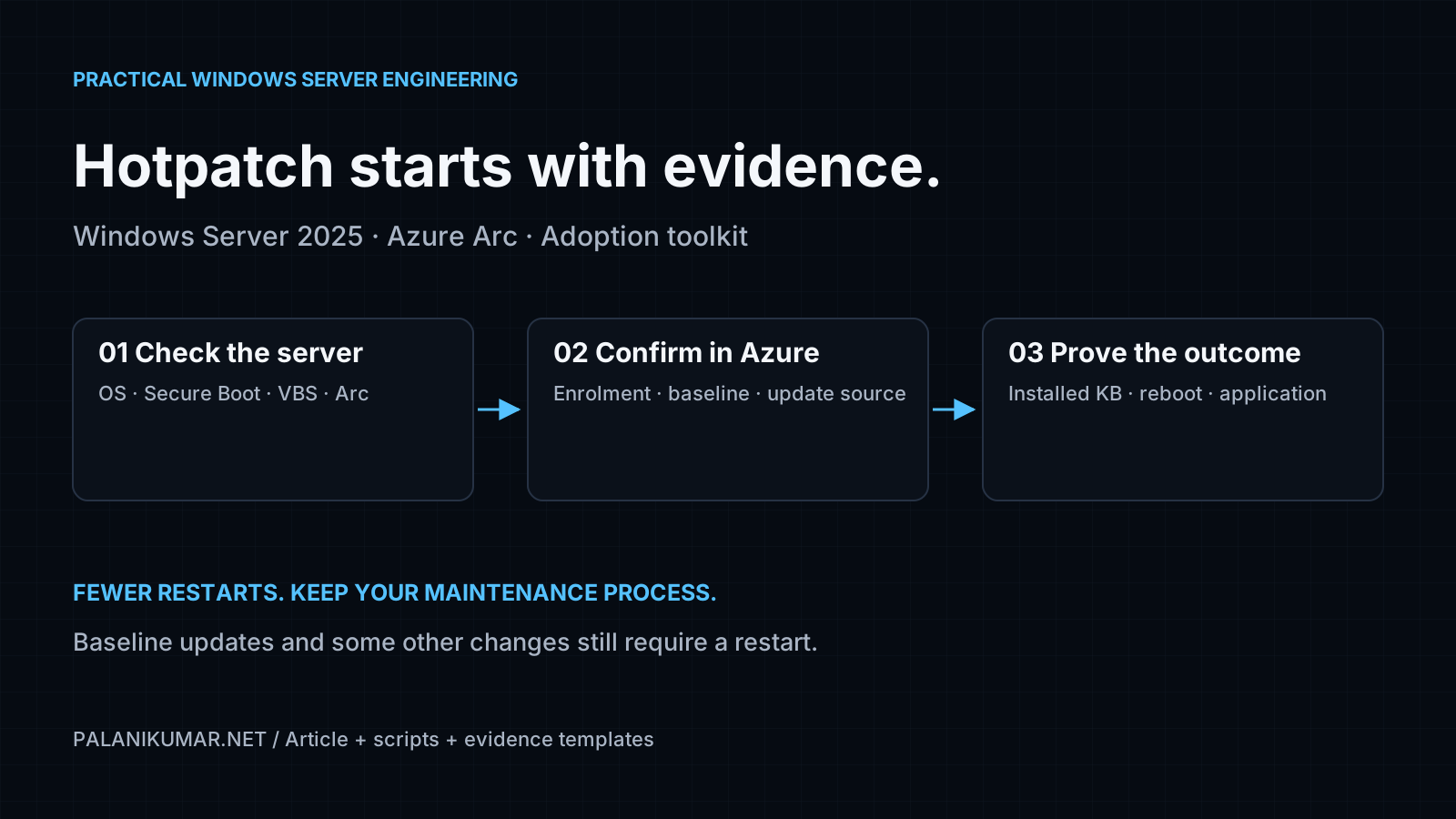
Hotpatch can reduce the number of operating-system restarts in a Windows Server maintenance programme. The useful engineering question is whether a particular server, update and workload can complete the approved change with the expected availability.
I would separate that decision into three gates: local prerequisites, Azure enrolment and update applicability, and the observed installation and application outcome. This guide provides a visual walkthrough and a small assessment toolkit for that process. Open any diagram or screenshot at full resolution by selecting it.
Scope: Windows Server 2025 Standard or Datacenter on physical servers or virtual machines outside the native Azure VM management path, connected through Azure Arc. This is not a Windows 11 Hotpatch guide or an Azure Edition deployment recipe.
Start here: download, inspect and assess
- Download the complete Hotpatch adoption toolkit v1.0.0
- Read the toolkit instructions
- Open the synthetic example report
- Download the adoption register
- Inspect the collector source and shared module
The scripts read local system state and write evidence files. They do not enable Arc, change VBS, install updates, alter services or restart a server. Azure queries are supplied as separate text files for an operator to run in an authorised subscription.
Evidence boundary: “Ready for Azure validation” means the toolkit observed the local checks it implements. It does not mean Hotpatch is enrolled, the current baseline is installed, or the application has passed a production test. Unknown information remains a review item.
In this guide
- What Hotpatch changes
- Understand the management and package paths
- Check the server before enrolment
- Run the PowerShell assessment
- Confirm enrolment and assess in Azure
- Design the rollout and reboot windows
- Prove the installation outcome
- Troubleshoot by failed layer
- Prepare rollback and operational ownership
- Adopt the toolkit in an operations process
What Hotpatch changes
Microsoft describes Hotpatch as patching running in-memory code. A planned cycle establishes a cumulative-update baseline requiring a restart, followed by Hotpatch releases. An unplanned baseline can replace a Hotpatch release and also requires a restart. Nonsecurity Windows, .NET, driver and firmware servicing remain separate considerations.
There is no automatic Hotpatch rollback. Microsoft’s documented recovery involves removing the affected update and restoring the last working baseline, with a restart. See Hotpatch for Windows Server.
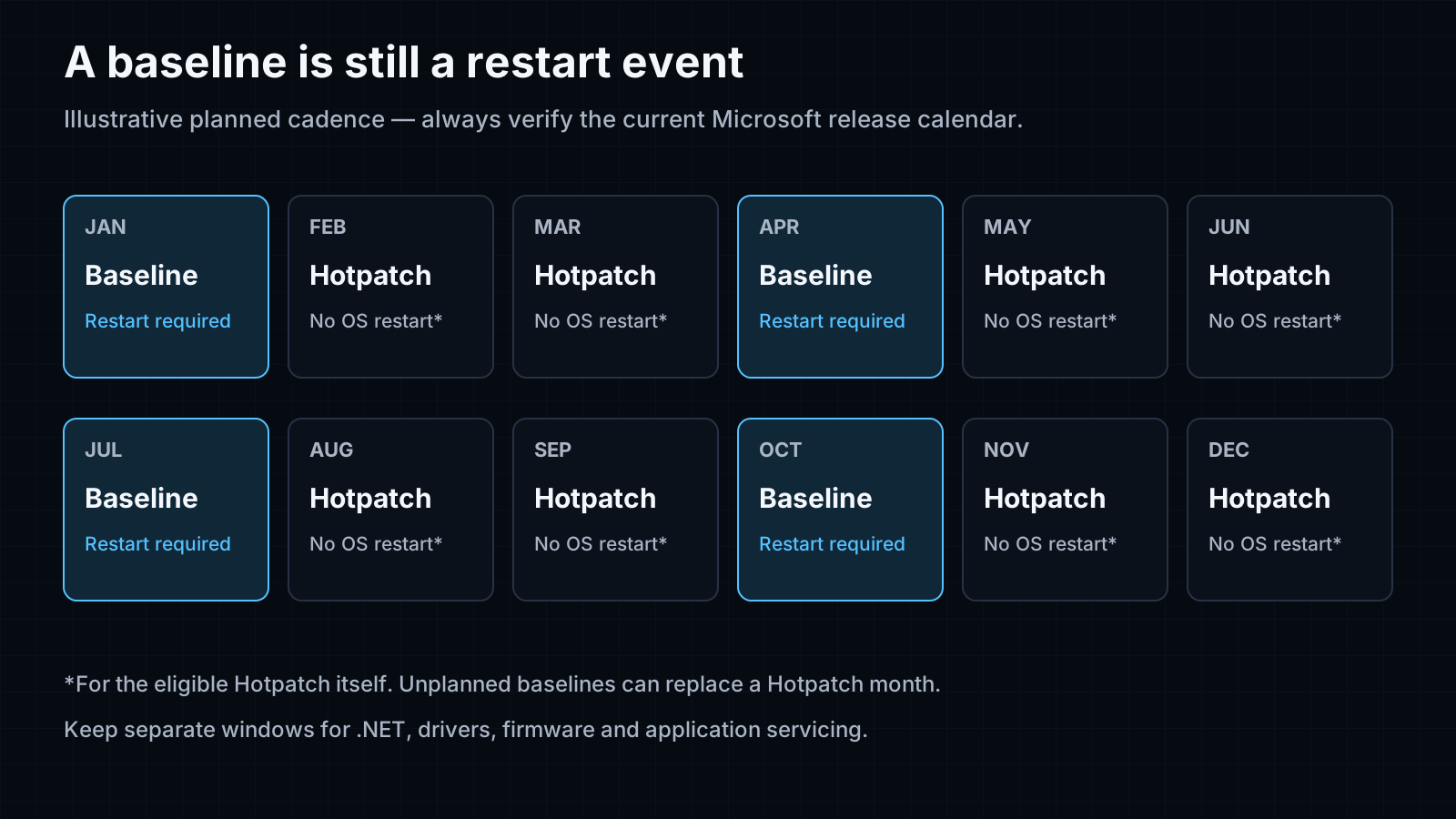
Original explanatory diagram. This is a model cadence, not a prediction of the next twelve releases. Check the Windows Server release information and the applicable update’s KB article before every deployment.
I would keep the normal maintenance capability in place even when a monthly deployment is expected to avoid a restart. That includes application owners, console access, recovery procedures and a window capable of handling an unexpected baseline.
What about cost?
Microsoft’s current Update Manager guidance says Arc-enabled Hotpatch for Windows Server 2025 Standard and Datacenter has no additional Hotpatch charge from 19 May 2026. This statement does not establish the cost of Windows Server licensing, other Azure services or your chosen management configuration. Older articles can still describe the previous charging model. Use the current billing guidance.
Understand the management and package paths
Azure Arc represents and connects the machine. Azure Update Manager coordinates assessment and installation. The guest’s Windows Update Agent uses its configured update source. Update Manager respects Windows Update, Microsoft Update or WSUS configuration; onboarding Arc does not replace that configuration.
This distinction explains a common investigation pattern: a server can be connected to Azure, yet its update assessment still depends on the guest’s source and that source’s available content. See how Azure Update Manager works.
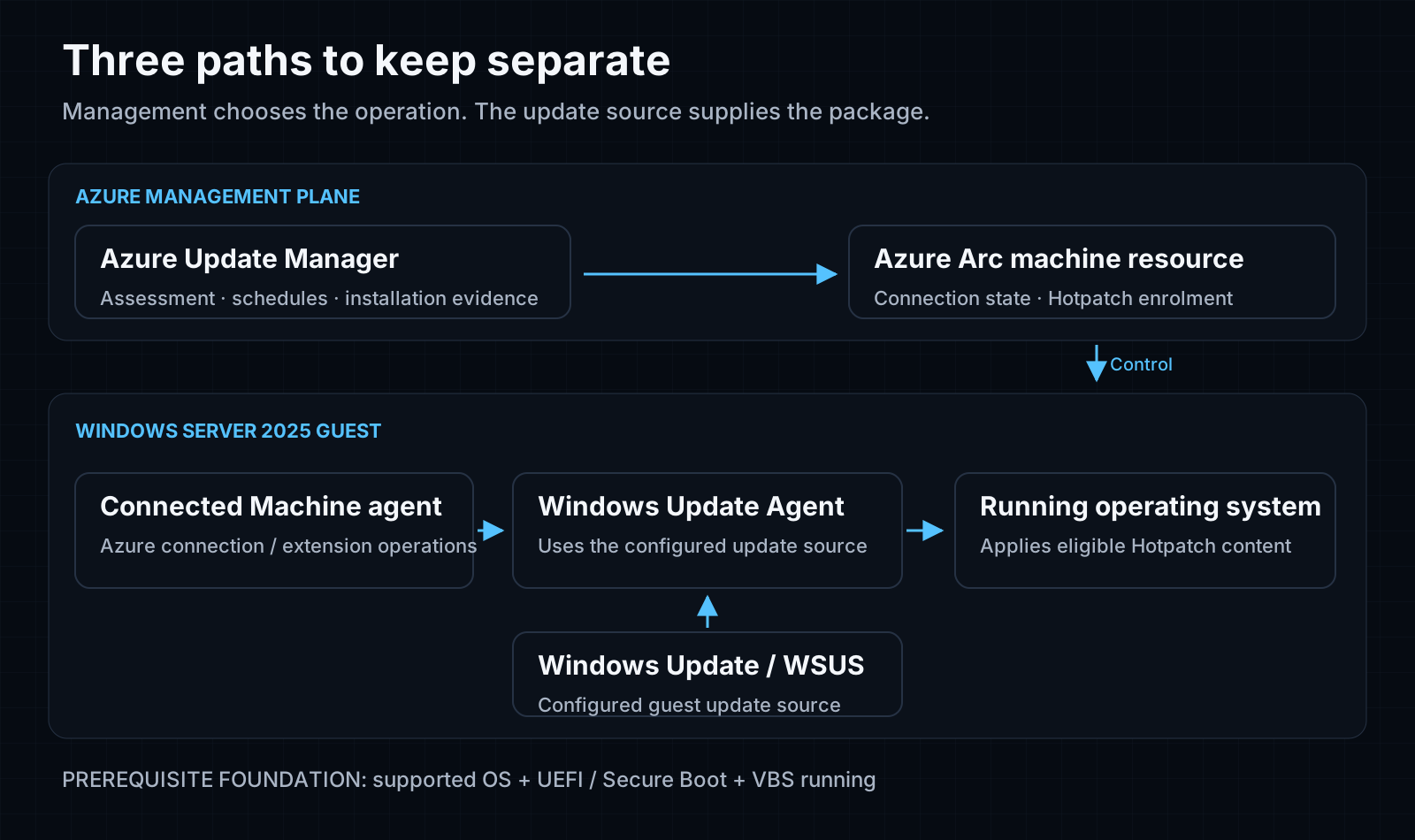
Original architecture diagram. It describes responsibilities, not individual network endpoints or a complete firewall allow list.
Before changing anything, record these four owners:
| Boundary | Owner to identify | Evidence to collect |
|---|---|---|
| Windows platform | Server or virtualisation team | Edition, build, boot configuration, VBS state |
| Azure management | Arc and Update Manager operator | Machine resource, connection state, enrolment, assessment time |
| Update content | Windows servicing team | Update source and applicable content availability |
| Workload | Application or service owner | Transaction test, dependencies and rollback acceptance |
For VMware or Hyper-V guests, the hypervisor configuration is a dependency. A guest registry setting cannot establish that all required virtual hardware capabilities are exposed.
Check the server before enrolment
Microsoft lists Windows Server 2025 build 26100.1742 or later, supported editions, UEFI with Secure Boot, VBS/VSM support and Azure Arc connection for this route. Both Server Core and Desktop Experience are covered. Hyper-V guests need Generation 2. See the enrolment prerequisites.
The minimum build is an entry prerequisite. It is not the approved baseline for today’s update.
Read the running VBS state
Use an elevated session where your policy permits:
Get-CimInstance -Namespace 'root\Microsoft\Windows\DeviceGuard' -ClassName Win32_DeviceGuard |
    Select-Object VirtualizationBasedSecurityStatus,
                  SecurityServicesConfigured,
                  SecurityServicesRunning

Confirm-SecureBootUEFI
For Win32_DeviceGuard.VirtualizationBasedSecurityStatus:
| Value | Meaning | Operational interpretation |
|---|---|---|
| 0 | VBS not enabled | Investigate the approved security configuration |
| 1 | Enabled but not running | Configuration alone has not met the running-state check |
| 2 | Enabled and running | Running-state evidence is present |
| Query fails | Unknown | Resolve access, provider or environment problems before proceeding |
These values belong to this WMI property; do not substitute an unrelated MDM status enumeration. Microsoft documents them in VBS validation guidance.
Enabling VSM may require a restart. The supplied toolkit deliberately does not modify security policy. Plan any prerequisite change with the platform owner, test hardware and driver compatibility, and re-query the running state afterwards.
Keep the hosting routes separate
Native Azure VMs should use their supported Azure VM route. Microsoft advises against installing the Arc Connected Machine agent on native Azure VMs for normal management. Do not copy an Arc onboarding recipe onto every server merely to make an assessment green. See Arc agent prerequisites.
Run the PowerShell assessment
Extract the ZIP, read the scripts and inspect their hashes against SHA256SUMS.txt. A hash checks consistency against the published package; it is not a publisher signature. The community scripts are unsigned. Follow your organisation’s code review and signing process rather than bypassing execution policy.
Run the collector locally on a server in a new evidence directory:
# Keep the collector and Hotpatch.Readiness.psm1 in the same extracted folder.
.\Test-HotpatchReadiness.ps1 -OutputDirectory 'C:\Evidence\Hotpatch-Before' -PassThru
Requirements: Windows, a 64-bit PowerShell process, PowerShell 5.1 or 7, and permission to read the relevant CIM classes and registry locations. Elevation may be needed for complete evidence. No Azure login is performed.
| File | Purpose | Important limit |
|---|---|---|
| readiness.json | Structured evidence, collection issues and decision | Contains infrastructure metadata; retain internally |
| checks.csv | Seven local checks and their interpretation | Not a fleet compliance certificate |
| readiness.html | Standalone local report, with no external dependencies | Cloud checks remain explicitly unassessed |
The collector checks OS type/build, edition route, architecture, VBS state, Secure Boot, local Arc status and selected reboot indicators. It also records installed hotfixes and the last boot time for later comparison.
The edition filter intentionally covers non-evaluation Standard/Datacenter. Other editions need a separate route review. Reboot detection covers CBS, Windows Update and pending file rename indicators; it cannot prove that every product has no outstanding restart requirement.
Interpret the three local results
| Result | What to do next |
|---|---|
| Ready for Azure validation | Continue with Azure heartbeat, enrolment, baseline and update assessment |
| Needs review | Resolve failed or unknown prerequisites; inspect CollectionIssues in JSON |
| Unsupported for this path | Review the OS/build/architecture route rather than forcing enrolment |
Missing data is not converted into a passing result. The local Arc read uses azcmagent show; it does not itself establish end-to-end cloud reachability.
Build a fleet view without enabling remoting
Collect one report per server using your approved software distribution or operations process. Copy the reports to a restricted evidence folder, then merge them offline:
$reports = Get-ChildItem -LiteralPath 'C:\Evidence\Servers' -Filter readiness.json -Recurse

.\Merge-HotpatchReports.ps1 -InputPath $reports.FullName -OutputDirectory 'C:\Evidence\Hotpatch-Fleet'
The merger recalculates decisions from the supplied evidence and creates fleet.html and fleet.csv. It does not connect to the servers. Check capture times before making decisions: yesterday’s successful query is not evidence of today’s configuration.
Confirm enrolment and assess in Azure
Confirm the machine resource, its connection state and recent heartbeat in the correct subscription. Then follow the current portal path in Manage hotpatches on Arc-enabled machines.
- Open Azure Update Manager and select the intended Arc-enabled machine.
- Review the Hotpatch setting under the recommended updates area.
- Enable Hotpatch through the documented confirmation flow.
- Wait for enrolment to complete and refresh the status.
- Run an update assessment and inspect the applicable updates and restart information.
Enabled identifies the enrolment state. Pending is intermediate. Neither proves that a particular KB installed successfully.
Screenshot 1: the assessment and update workspace
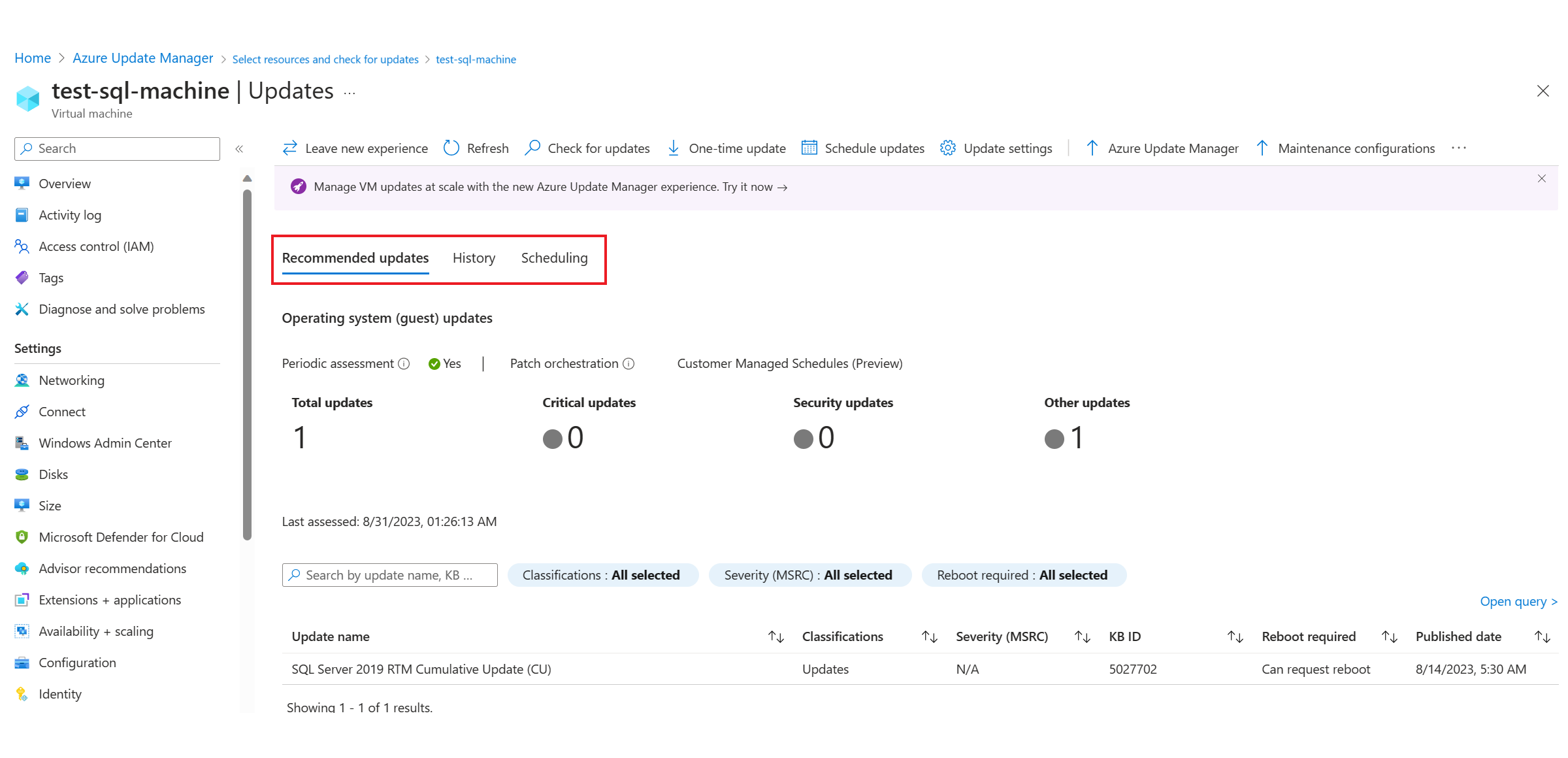
Microsoft Learn documentation screenshot, reproduced unmodified from Assessment options. Click to open at full resolution. This is a Microsoft example, not a screenshot of my tenant; portal labels and layout can change.
Microsoft documents periodic assessment and an on-demand check. Assessment uses the guest’s update service and refreshes the recommended update view. Record the assessment time alongside its results so a stale view is not mistaken for a fresh scan.
Separate observation and change permissions
Use the Update Manager permissions table to distinguish resource reads, assessment actions, installations and schedule changes. For example, Arc installation uses Microsoft.HybridCompute/machines/installPatches/action; reading existing results is a different permission.
I would avoid giving a reporting identity broad subscription ownership just to export assessment evidence. Scope each role to the operations and resources that team actually needs.
Design the rollout and reboot windows
The following rings are an operating model to adapt, not Microsoft-mandated timings:
| Ring | Scope | Evidence required before promotion |
|---|---|---|
| Lab | Disposable representative workload | Prerequisite checks, installation, expected restart behaviour, recovery exercise |
| Pilot | Small noncritical service | Application acceptance, monitoring and an owner who can investigate |
| Production wave 1 | Bounded low-impact group | Approved KB, fresh assessment, recovery readiness and completed pilot |
| Production wave 2 | Remaining approved servers | Stable first-wave results and no unresolved servicing incident |
Keep highly available peers in separate waves according to the workload’s availability model. For clusters, domain controllers and application replicas, use the product-specific maintenance procedure. The toolkit does not drain nodes, verify replication or orchestrate failover.
Screenshot 2: create the maintenance configuration
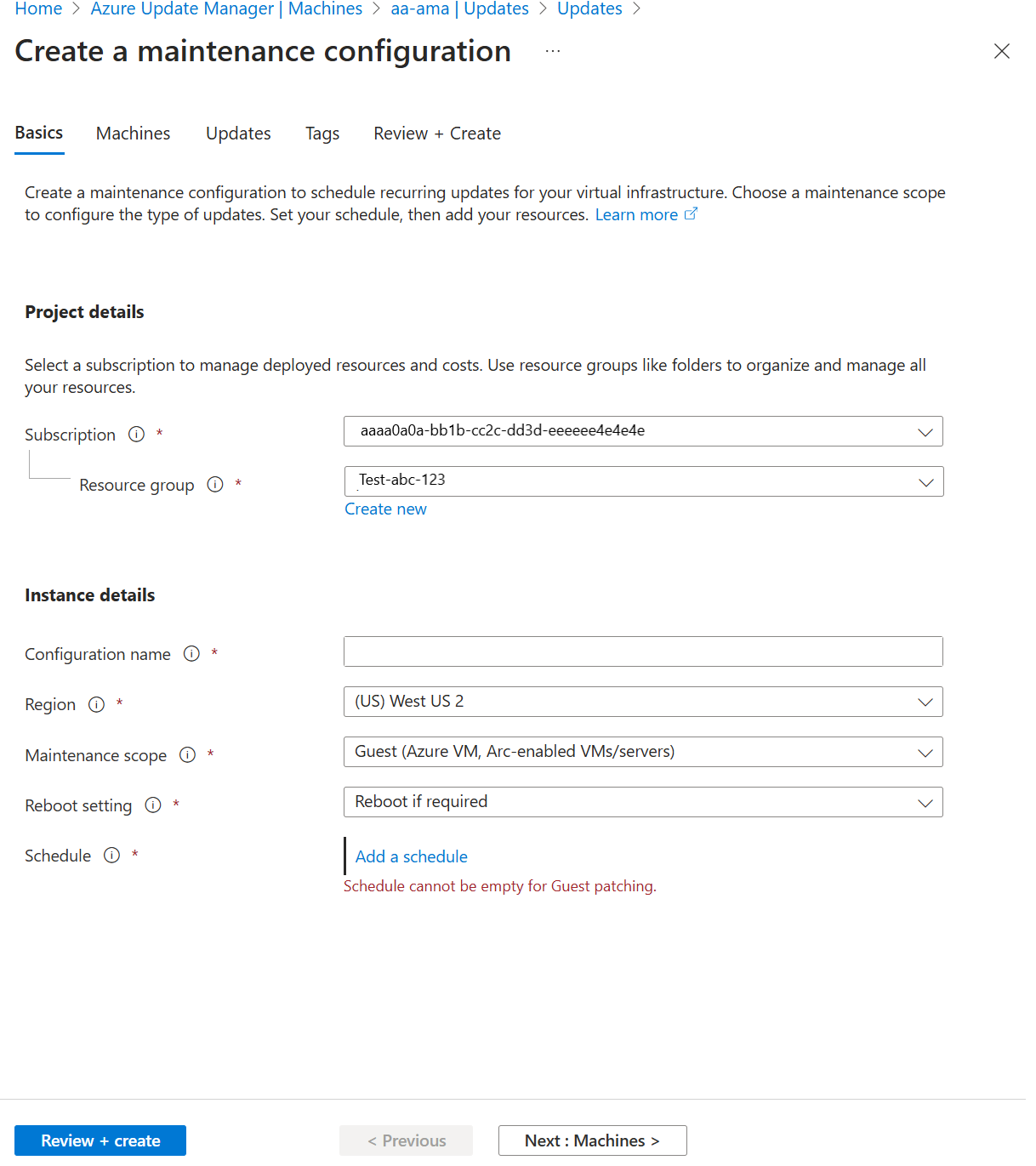
Microsoft Learn documentation screenshot, reproduced unmodified from Schedule recurring updates. Click for full resolution. This demonstrates the scheduling workspace; it does not establish your machine selection, Hotpatch eligibility or approved reboot policy.
Inspect the machines, update selection, schedule, time zone and restart configuration together. Microsoft warns that guest restart settings can cause a reboot even where the schedule selects Never Reboot. A maintenance window also is not a promise to forcibly terminate an update already in progress. Design the change around those behaviours.
Prove the installation outcome
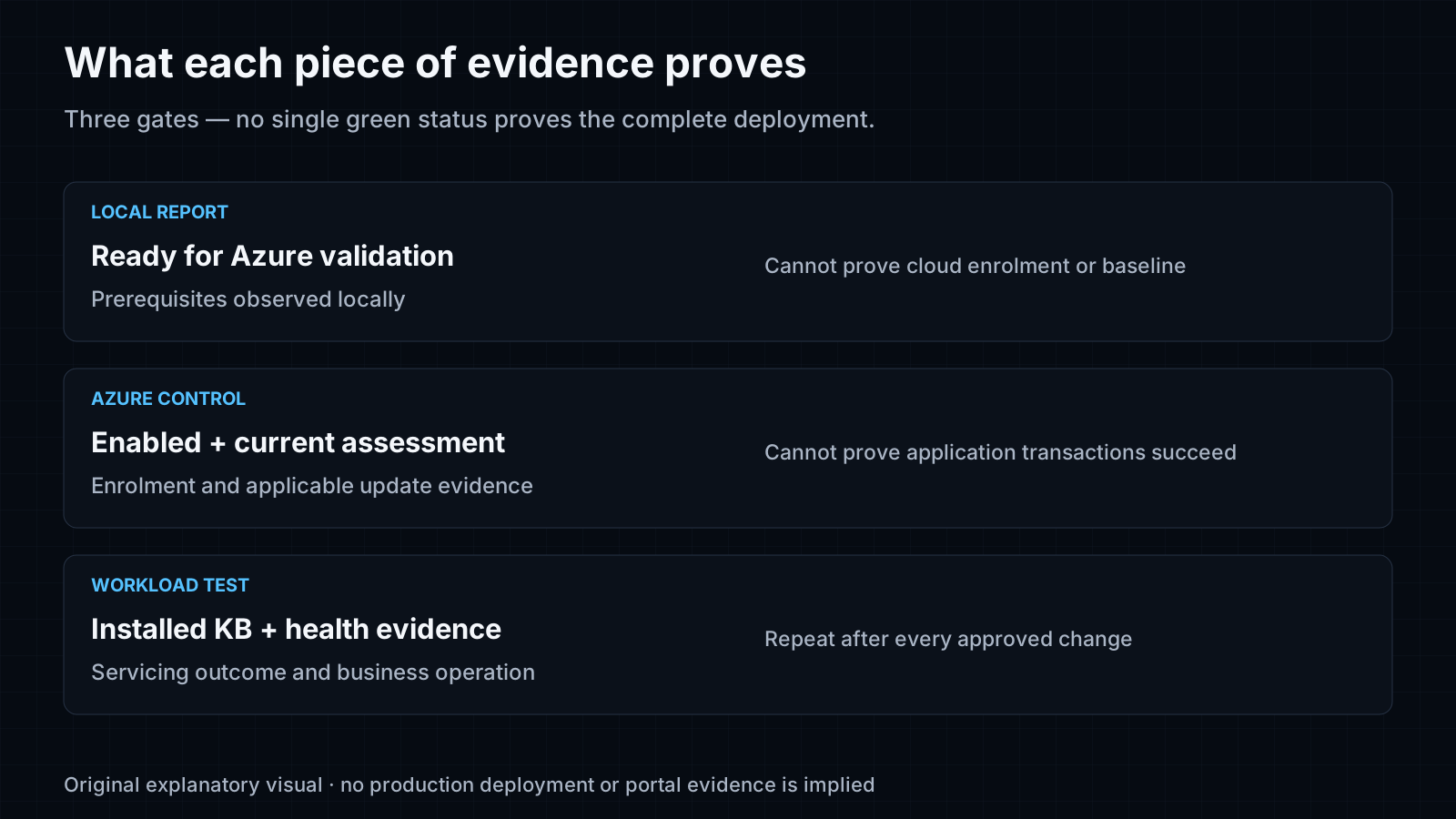
Original explanatory visual. Each gate answers a different question.
Before installation, capture the approved KB, fresh assessment, local snapshot and workload acceptance result. After the deployment, retain the installation record and repeat the snapshot:
.\Test-HotpatchReadiness.ps1 -OutputDirectory 'C:\Evidence\Hotpatch-After' -PassThru

# Substitute the actual approved KB. This identifier is illustrative.
.\Compare-HotpatchEvidence.ps1 -BeforePath 'C:\Evidence\Hotpatch-Before\readiness.json' -AfterPath 'C:\Evidence\Hotpatch-After\readiness.json' -ExpectedKb 'KB1234567'
The comparison checks that the files refer to the same server and that their timestamps are ordered. It reports whether the expected KB appears in the captured Get-HotFix inventories and whether the recorded last boot time changed.
An absent Get-HotFix entry is not conclusive installation failure. Correlate the actual servicing and Update Manager records. Similarly, an unchanged boot time supports “no restart observed between these snapshots”; it does not prove the application remained healthy.
Use a workload transaction with a known expected result. For example, request an approved application health endpoint and exercise a synthetic business transaction before and after the change. A running service process alone is weak acceptance evidence.
Retain the cloud evidence
The ZIP includes three read-only queries for Azure Resource Graph Explorer, not a Log Analytics workspace:
- arc-inventory.kql inventories visible Arc machines.
- patch-assessments.kql retrieves assessment summaries.
- patch-installations.kql retrieves installation summaries.
Resource Graph exposes update data through patchassessmentresources and patchinstallationresources. The documented schema distinguishes summary records from per-update records. The supplied queries deliberately retain identifiers for correlation rather than pretending every update is a Hotpatch.
Assessment data has a seven-day retention period and installation results thirty days in Resource Graph. Export the evidence needed for your longer change-record retention. See Update Manager operations.
Troubleshoot by failed layer
| Symptom | First evidence to inspect | Next investigation |
|---|---|---|
| Unsupported local result | OS type, edition, architecture and full version | Check the deployment route and supported release |
| VBS configured but not running | Win32_DeviceGuard and platform configuration | Hypervisor exposure, firmware, security policy and required restart |
| Secure Boot unknown | CollectionIssues and command result | Elevation, firmware mode and provider availability |
| Arc local status is disconnected | Agent status, heartbeat and approved network path | Follow Arc diagnostics; keep raw logs access-controlled |
| Hotpatch remains Pending | Cloud operation state and Arc health | Investigate the current enablement guidance and agent errors |
| Enabled but expected KB absent | Fresh assessment, baseline and configured update source | Verify release applicability and content availability |
| Unexpected restart | Selected updates, baseline classification and restart policy | Separate OS Hotpatch from other servicing work |
| Installation succeeded but service degraded | Workload transaction and application logs | Stop wave promotion and invoke the approved recovery procedure |
For Arc connection failures, use the current Connected Machine agent troubleshooting reference. Its error codes distinguish network, permission and agent-service problems. Do not disconnect or re-onboard a server as the first response to every failure.
The enrolment documentation retains historical workarounds. Match any workaround to the exact affected version and incident before considering it. I have not placed old feature-override or registry-removal commands into the assessment toolkit.
Prepare rollback and operational ownership
Agree the rollback owner before the pilot. Record the known-good update state, application recovery procedure, console access, backup/restore evidence and the decision point for stopping the next wave.
This guide deliberately does not provide a universal “uninstall latest update” script. Recovery depends on the particular update, workload and supported servicing procedure. An automatic script that selects a KB by installation date could remove the wrong update.
For restore planning, pair this guide with Azure Backup: the restore is what matters and use the relevant application recovery documentation.
Adopt the toolkit in an operations process
- Assign platform, Azure, update-source and application owners in adoption-register.csv.
- Review and internally sign the scripts if your execution policy requires it.
- Collect local reports on the approved candidate set.
- Resolve unsupported and unknown results; do not override the decision to meet a target.
- Complete Azure enrolment, baseline and update-source checks.
- Exercise the lab ring, including a recovery scenario.
- Publish the pilot evidence and obtain the normal change approval.
- Promote one wave at a time, retaining both successful and failed outcomes.
- Reassess after platform changes and review the current Microsoft KB before each release.
Success criteria: the approved update is installed, restart behaviour is understood, the workload transaction meets its acceptance criteria, and the evidence can be reconstructed. Enrolment alone is only one part of that result.
Validation and limitations
The toolkit passed 45 offline checks covering decision branches, unknown evidence, HTML encoding and PowerShell syntax and file workflows. A local Windows client run also returned the unsupported-path result and retained denied-read errors as collection issues. This did not qualify a server. The included sample report uses fabricated server identities and inputs. It is labelled synthetic and must not be used as deployment evidence.
The collector also needs validation on representative Windows Server 2025 Standard and Datacenter systems, including your hypervisor, policy and Arc agent versions. No Azure enrolment, current patch installation, firmware change or workload qualification was performed for this publication.
Reports can contain hostnames, build levels, update history and diagnostic messages. Keep real reports inside your organisation. The toolkit sends no telemetry and the report renderer has no external scripts or assets.
References and visual attribution
Product information reviewed on 2 November 2026:
- Hotpatch for Windows Server
- Enable Hotpatch for Arc-enabled servers
- Manage Arc Hotpatch and billing
- Windows Server release information
- Validate VBS and memory integrity
- Arc agent prerequisites
- Arc agent show command
- Assessment options
- Scheduled patching
- Roles and permissions
- Update Manager operation and retention
- Resource Graph log schema
- Arc connection troubleshooting
Original diagrams are explanatory illustrations. The two portal screenshots are unmodified Microsoft Learn examples with source links in their captions; they do not depict a deployment in my environment. Visual provenance.
Reader feedback
Was this article useful?
No ratings yet. Be the first to rate this article.