
Practical engineering guidance
Entra hard-match protection: why privileged cloud accounts now refuse takeover
Microsoft Entra ID now blocks risky hard-match operations that could let an on-premises Active Directory object take control of a privileged cloud account. Prepare migrations by proving identity, source anchor and role state before synchronization.
Series: Hybrid identity operations
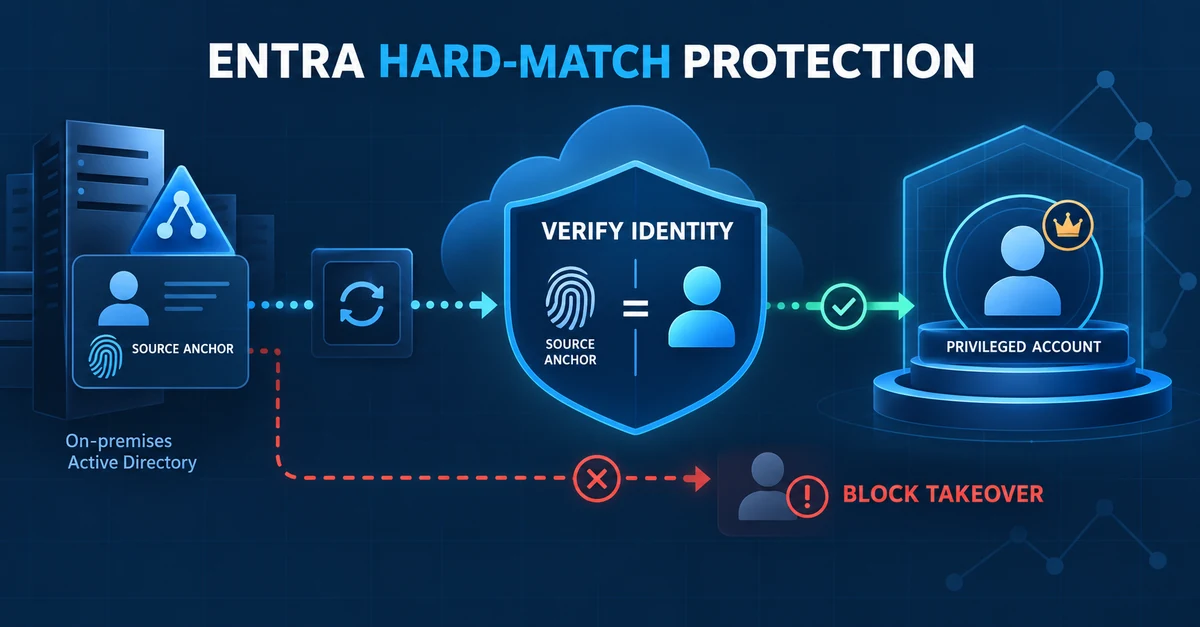
A hard match in Microsoft Entra ID is not just a duplicate-account fix. It changes which directory controls an identity.
When an object arriving from Active Directory has a source anchor that matches a cloud user’s
onPremisesImmutableId, Microsoft Entra ID can convert that cloud-managed user into an
on-premises-managed user. Attributes held in Active Directory can overwrite cloud values, and
password hash synchronisation can replace the password hash used in the cloud.
That behaviour is useful during a carefully planned hybrid identity migration. It is also a dangerous way for the wrong Active Directory object to take control of a privileged cloud account.
Microsoft has therefore added cloud-side hard-match protections. Microsoft Entra ID can now block a match when the target cloud account:
- already has an
onPremisesObjectIdentifiervalue; - has an active privileged Microsoft Entra role; or
- is eligible for a privileged role through Privileged Identity Management.
The protection applies to Microsoft Entra Connect Sync and Microsoft Entra Cloud Sync regardless of the client version because the decision is made by the Entra service.
What actually happens during a match
For a new object arriving from Active Directory, Entra tries to find an existing cloud object that represents the same identity.
Hard match compares the on-premises sourceAnchor with the cloud user’s
onPremisesImmutableId. Modern Connect configurations normally derive the source anchor from
mS-DS-ConsistencyGuid; older configurations may use objectGUID.
Soft match is attempted when there is no hard match. It compares the user principal name or the primary SMTP address. If the match is accepted, Entra writes the source anchor to the cloud object so later synchronisation uses a hard match.
If neither match succeeds, Entra attempts to create a new object. Duplicate UPN, proxy address, SID or immutable-ID values can then produce synchronisation errors.
The critical point is that a successful match transfers source of authority. It is not merely a link between two read-only records.
Why privileged identities receive additional protection
Imagine a cloud-only administrator created before hybrid identity was introduced. An operator creates or selects an Active Directory account, gives it the administrator’s expected source anchor and places it inside the synchronisation scope. Without an additional control, the incoming object could take over the cloud identity.
The cloud account could then inherit:
- the on-premises password hash;
- on-premises UPN, mail and directory attributes;
- an unintended Active Directory lifecycle; and
- a source of authority controlled from a less protected administrative plane.
For an ordinary user this can cause data loss and access problems. For a Global Administrator, Privileged Role Administrator or another sensitive identity, it can become a control-plane compromise.
Microsoft already recommends against synchronising pre-existing cloud administrative accounts with on-premises accounts. The new enforcement turns part of that guidance into a service-side protection.
What changes and what does not
The security change does not stop all hard matches:
- a new on-premises user can still hard-match to an unprivileged cloud user that is not already mapped, when the match is intentional;
- users already synchronising correctly continue to synchronise;
- soft-match behaviour remains governed separately;
- cloud-managed accounts with writeback enabled are excluded from this enforcement; and
- the tenant-wide block controls can still impose stricter policy.
Current Microsoft implementation documentation states that the additional enforcement began on 1 July 2026. An earlier Entra release announcement said 1 June 2026. Treat the current technical documentation and observed tenant behaviour as authoritative for implementation, and do not design a migration around the assumption that a risky match will still be accepted.
Errors administrators will see
The block can appear in Connect Sync, Cloud Sync or Entra Connect Health as:
| Condition | Typical error |
|---|---|
| Target has an assigned or eligible privileged role | InvalidHardMatch / error family 103 |
| Target already maps to another on-premises object | AttributeUpdateNotAllowed / error family 96 |
| General enforcement block | Hard match blocked due to security hardening |
| Tenant-wide takeover blocking is enabled | InvalidHardMatch |
Older clients may show less precise wording. Do not select a remediation solely from the error number. First establish which identities are involved and why Entra refused the reassociation.
1. Freeze the identity change
When a privileged hard match fails:
- Keep the affected on-premises object outside the synchronisation scope if possible.
- Do not repeatedly edit
mS-DS-ConsistencyGuid,objectGUID, UPN or proxy addresses. - Record the Connect or Cloud Sync error, connector, timestamp and cloud object ID.
- Identify the owner who can confirm that both objects represent the same person.
- Preserve the cloud account’s roles, licences, group membership, authentication methods and mailbox identity before making a change.
Repeated trial-and-error matching makes the evidence harder to interpret and increases the chance of joining the wrong objects.
2. Inspect the on-premises source anchor without changing it
From a management host with the Active Directory module, collect the candidate object’s immutable attributes:
$SamAccountName = 'candidate.user'

$adUser = Get-ADUser -Identity $SamAccountName -Properties `
    objectGUID,
    'mS-DS-ConsistencyGuid',
    userPrincipalName,
    proxyAddresses,
    objectSid

$sourceGuid = if ($adUser.'mS-DS-ConsistencyGuid') {
    [Guid]::new([byte[]]$adUser.'mS-DS-ConsistencyGuid')
} else {
    $adUser.ObjectGUID
}

$calculatedImmutableId = [Convert]::ToBase64String(
    $sourceGuid.ToByteArray()
)

[pscustomobject]@{
    DistinguishedName      = $adUser.DistinguishedName
    UserPrincipalName      = $adUser.UserPrincipalName
    ObjectGuid             = $adUser.ObjectGUID
    SourceAnchorGuid       = $sourceGuid
    CalculatedImmutableId  = $calculatedImmutableId
    ObjectSid              = $adUser.ObjectSid.Value
    PrimarySmtpAddress     = ($adUser.ProxyAddresses |
        Where-Object { $_ -cmatch '^SMTP:' }) -replace '^SMTP:', ''
}
Confirm which attribute your synchronisation configuration uses as its source anchor. Do not assume every forest uses the modern default, particularly after Connect reinstalls, forest migrations or older deployments.
3. Inspect the cloud object and role state
Use a read-only Graph connection and request only the properties needed for comparison:
Connect-MgGraph -Scopes @(
    'User.Read.All',
    'RoleManagement.Read.Directory'
)

$UserId = 'candidate.user@contoso.com'

$cloudUser = Get-MgUser -UserId $UserId -Property @(
    'id',
    'displayName',
    'userPrincipalName',
    'onPremisesImmutableId',
    'onPremisesObjectIdentifier',
    'onPremisesSyncEnabled',
    'proxyAddresses'
)

$cloudUser | Select-Object `
    Id,
    DisplayName,
    UserPrincipalName,
    OnPremisesImmutableId,
    OnPremisesObjectIdentifier,
    OnPremisesSyncEnabled
Then check both active role assignments and eligible assignments. Active roles are only half the test; an account eligible through PIM is also protected.
$principalId = $cloudUser.Id

$activeUri = "/v1.0/roleManagement/directory/roleAssignmentScheduleInstances" +
    "?`$filter=principalId eq '$principalId'"

$eligibleUri = "/v1.0/roleManagement/directory/roleEligibilityScheduleInstances" +
    "?`$filter=principalId eq '$principalId'"

$activeRoles = (Invoke-MgGraphRequest -Method GET -Uri $activeUri).value
$eligibleRoles = (Invoke-MgGraphRequest -Method GET -Uri $eligibleUri).value

[pscustomobject]@{
    ActiveRoleAssignments   = @($activeRoles).Count
    EligibleRoleAssignments = @($eligibleRoles).Count
}
Resolve the returned role-definition IDs to names for the change record. Confirm whether each assignment is direct, group-based or scoped to an administrative unit.
4. Prove that both records are the same identity
Before permitting a match, compare more than the display name or email address:
| Evidence | Expected result |
|---|---|
| HR or authoritative person identifier | Same individual |
| UPN and primary SMTP address | Intentional and correctly owned |
| AD source anchor | Exactly equals cloud onPremisesImmutableId |
| Existing object identifier | Empty, or proven to be the mapping being replaced |
| Active privileged roles | Accounted for and approved |
| PIM eligibility | Accounted for and approved |
| Authentication methods | Exported or documented before change |
| Licences and service ownership | Preserved after match |
| Mailbox and OneDrive identity | Confirmed against the intended cloud object |
Two objects sharing a name or address do not prove identity. Recreated AD users, forest moves, mergers and restored domain controllers can all produce misleading attribute combinations.
5. Choose the recovery path from the block reason
Privileged role assigned or eligible
Microsoft’s documented recovery is:
- Prove the object relationship and obtain an approved change window.
- Restore the cloud user first if it is soft-deleted.
- Temporarily remove active role assignments and PIM eligibility.
- Run synchronisation and confirm the hard match completes.
- Restore the role assignments and eligibility immediately.
- Validate sign-in, authentication methods and administrative access.
Use a separate emergency-access account during this work. Do not remove the only working Global Administrator assignment in the tenant.
onPremisesObjectIdentifier already populated
This normally indicates that the cloud object is already associated with an on-premises object. That can occur after an AD account recreation, forest move, domain consolidation or previous sync relationship.
Prove which object should own the cloud identity before clearing anything. Microsoft’s documented
Graph recovery uses a PATCH request to set onPremisesObjectIdentifier to null, but this is a
high-impact write using the beta endpoint and specialised permission. Treat it as a controlled
identity reassociation, not a routine command copied into a console.
Tenant-wide hard-match blocking enabled
Check the directory synchronisation feature state:
Connect-MgGraph -Scopes 'OnPremDirectorySynchronization.Read.All'

$directorySync = Get-MgDirectoryOnPremiseSynchronization

$directorySync.Features | Select-Object `
    BlockCloudObjectTakeoverThroughHardMatchEnabled,
    BlockSoftMatchEnabled
Microsoft advises keeping hard and soft matching blocked when the tenant does not need to take over existing cloud-only accounts. If a migration genuinely requires matching, disable the relevant block only for the approved window and re-enable it immediately afterward.
Temporary bypass for object-identifier updates
Microsoft provides the
allowOnPremUpdateOfOnPremisesObjectIdentifierEnabled feature for migration, recovery or
consolidation cases where normal remediation cannot be completed first. It is disabled by default.
Use it only with an explicit inventory, tightly limited change window and documented rollback.
Disable it after remediation.
6. Run a controlled synchronisation
For Connect Sync, use a delta cycle after the identity and role changes are ready:
Start-ADSyncSyncCycle -PolicyType DeltaMonitor the export rather than assuming that starting the cycle completed the change. For Cloud Sync, use its provisioning logs and restart-on-demand capability where appropriate.
Validate all of the following:
- no
InvalidHardMatchorAttributeUpdateNotAllowedexport error remains; - the cloud object’s
onPremisesImmutableIdequals the intended source anchor; onPremisesObjectIdentifierrepresents the correct AD object;onPremisesSyncEnabledhas the expected value;- UPN, primary SMTP address and required cloud attributes remain correct;
- password and sign-in behaviour follow the approved authentication design;
- active and eligible roles are restored to their previous state; and
- audit and provisioning logs show the expected administrative actions.
Test the account through a non-destructive sign-in and role-validation procedure. Avoid making the first validation action a production configuration change.
7. Prevent the next emergency match
The stronger operating model is to avoid synchronising cloud-native privileged accounts.
- Maintain dedicated cloud-only emergency-access identities.
- Use separate administrator accounts rather than elevating normal synchronised users.
- Protect privileged roles with PIM, approval, authentication strength and access reviews.
- Keep
mS-DS-ConsistencyGuidstable throughout forest and domain migrations. - Export source-anchor mappings before changing sync tooling or scope.
- Enable tenant-wide hard- and soft-match blocking when takeovers are not required.
- Alert on changes to directory synchronisation configuration and privileged-role membership.
- Treat clearing immutable mapping attributes as a security-sensitive change.
A migration runbook that can be audited
For each intentional match, retain:
- the AD distinguished name, GUID, source anchor and SID;
- the cloud object ID, immutable ID and existing object identifier;
- the identity-owner approval proving both records belong to the same person;
- active and eligible role assignments before and after the change;
- the exact sync error and selected recovery path;
- timestamps for removing and restoring privileged access;
- the successful export and validation evidence; and
- confirmation that any temporary tenant feature was returned to its secure state.
This evidence answers the question an incident responder or auditor will ask later: why was this on-premises object allowed to take authority over that cloud identity?
The security lesson
An immutable ID is a directory correlation value. It is not proof that two accounts should be joined.
The new hard-match protection correctly treats privileged identity reassociation as a security decision. It prevents a convenient migration mechanism from silently becoming an account-takeover path.
When a match is blocked, do not begin by looking for the fastest bypass. Prove the identity, understand the source of authority, account for active and eligible roles, make one controlled change and restore the protection immediately.
References
Reader feedback
Was this article useful?
No ratings yet. Be the first to rate this article.