
Practical engineering guidance
PIM says activated, but the role still does not work
A successful PIM request proves that an assignment was created. It does not prove the target service has refreshed its authorization cache or that the activation scope is correct.
Series: Microsoft troubleshooting field guides
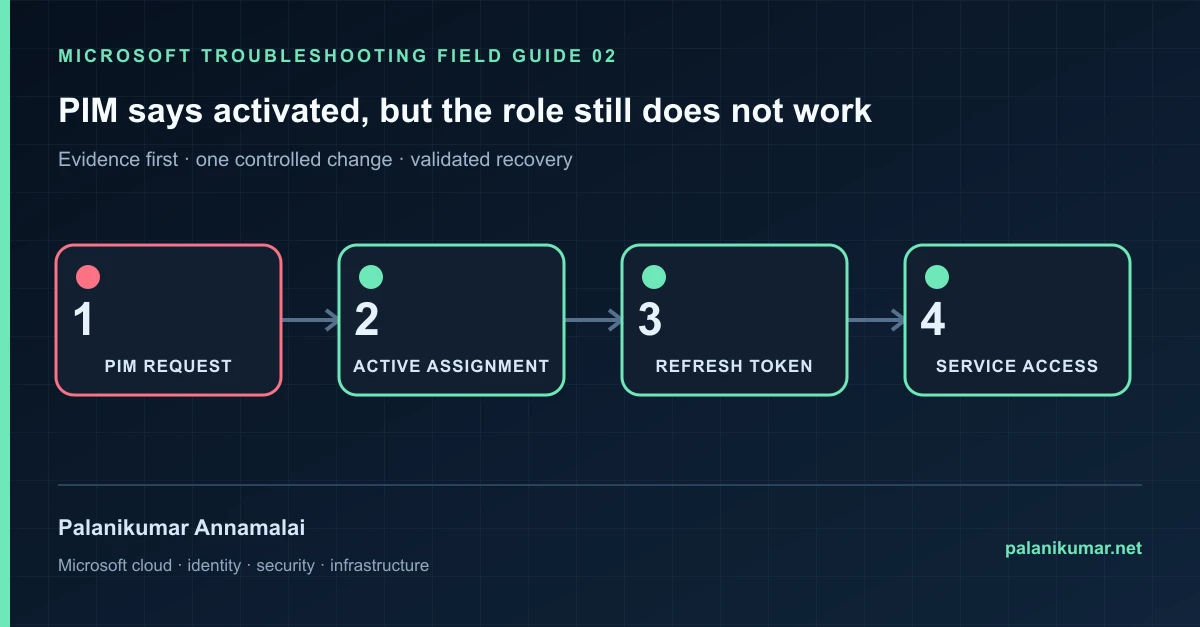
A successful PIM request proves that an assignment was created. It does not prove the target service has refreshed its authorization cache or that the activation scope is correct.
The fastest safe repair is rarely the first setting that makes the error disappear. Start by identifying the failed layer, preserve the evidence, change one cause and repeat the same test.
Recognise the failure
- PIM reports Activated but the portal still returns access denied.
- The role works in one service and not another.
- The activation is pending even though an approver responded.
- The user has an eligible assignment but cannot see it in My roles.
Write down the affected identity or resource, UTC time, client, source network and correlation or request ID before retrying. Nearby successful events are useful comparisons, but they are not the failed transaction.
Collect evidence before changing configuration
The following commands are read-only unless a comment explicitly says otherwise. Replace every placeholder and use the least-privileged administrative role that can read the required data.
Connect-MgGraph -Scopes 'RoleManagement.Read.Directory','AuditLog.Read.All'

$user = Get-MgUser -UserId 'user@contoso.com'
$uri = "/v1.0/roleManagement/directory/roleAssignmentScheduleInstances?`$filter=principalId eq '$($user.Id)'&`$expand=roleDefinition"
(Invoke-MgGraphRequest -Method GET -Uri $uri).value |
  Select-Object principalId, directoryScopeId, startDateTime, endDateTime,
@{n='Role';e={$_.roleDefinition.displayName}}| Evidence | What it proves |
|---|---|
| Activation request | Record request ID, role, scope, start, end, status and approval state. |
| Active schedule instance | Prove that the eligible assignment became active. |
| Directory scope | A role scoped to an administrative unit does not grant tenant-wide authority. |
| Current token | A token issued before activation might not contain the new authorization state. |
| Target service | Exchange, Intune and other portals may cache authorization independently. |
Work through the likely causes
1. The activation is active at the wrong scope
Compare directoryScopeId or appScopeId with the object being administered. Correct the eligibility assignment rather than adding a broader permanent role.
2. The session predates activation
Sign out of the target administrative session, close stale browser contexts, reconnect PowerShell and acquire a fresh token.
3. Approval or justification policy was not satisfied
Inspect the request status and PIM audit history. Confirm the correct approver group remains active and licensed.
4. The service has not refreshed authorization
Wait a short controlled interval, reauthenticate, and test a read-only action. Escalate with request ID and UTC timestamps if the directory assignment is active but the service still denies it.
Make the fix controlled and reversible
Before changing production, capture the current configuration, name the owner of the affected service and define the rollback trigger. Prefer the narrowest change that corrects the proven cause. Do not disable a tenant-wide security control, remove a protection policy or broaden a role simply to see whether the symptom changes.
Where a change affects identity, mail flow, security telemetry or network routing, use a test object or limited scope first. Record the exact command or portal setting, the operator, timestamp and the evidence that justified it.
Validate the repair
- Perform one read-only action that specifically requires the activated role.
- Verify the role disappears after expiry or manual deactivation.
- Confirm no permanent role was added as a workaround.
- Retain activation and target-service audit events with the change record.
A successful portal message is not the end of validation. Confirm the user or workload outcome, the relevant audit or health record and the absence of a weaker fallback path.
Evidence to keep
- the original error, correlation or request ID and UTC timestamp;
- the read-only command output that identified the failed layer;
- before-and-after configuration for the specific change;
- the successful validation transaction; and
- any limitation that still needs monitoring or vendor escalation.
References
Reader feedback
Was this article useful?
No ratings yet. Be the first to rate this article.