
Practical engineering guidance
Defender for Endpoint sensor unhealthy: trace service, connectivity and telemetry separately
Inactive, impaired communications and no sensor data are different states. Start with device identity and local evidence before repeatedly onboarding the endpoint.
Series: Microsoft troubleshooting field guides
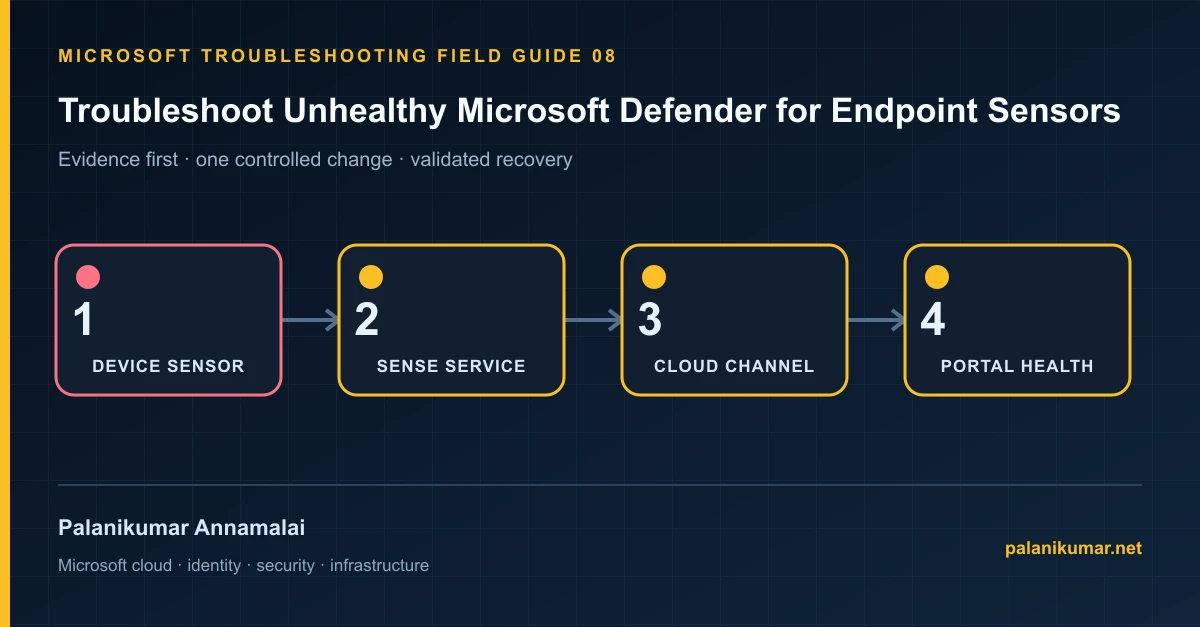
Inactive, impaired communications and no sensor data are different states. Start with device identity and local evidence before repeatedly onboarding the endpoint.
The fastest safe repair is rarely the first setting that makes the error disappear. Start by identifying the failed layer, preserve the evidence, change one cause and repeat the same test.
Recognise the failure
- The device is Inactive, Misconfigured, Impaired communications or No sensor data.
- Onboarding completed but the device never appears.
- The SENSE service does not start or repeatedly disconnects.
- The device was renamed or rebuilt and two records exist.
Write down the affected identity or resource, UTC time, client, source network and correlation or request ID before retrying. Nearby successful events are useful comparisons, but they are not the failed transaction.
Collect evidence before changing configuration
The following commands are read-only unless a comment explicitly says otherwise. Replace every placeholder and use the least-privileged administrative role that can read the required data.
Get-Service Sense, DiagTrack -ErrorAction SilentlyContinue |
  Select-Object Name, Status, StartType

Get-WinEvent -LogName 'Microsoft-Windows-SENSE/Operational' `
  -MaxEvents 100 -ErrorAction SilentlyContinue |
  Where-Object LevelDisplayName -in 'Error','Warning' |
  Select-Object TimeCreated, Id, LevelDisplayName, Message

Get-MpComputerStatus |
  Select-Object AMServiceEnabled,AntivirusEnabled,BehaviorMonitorEnabled,
RealTimeProtectionEnabled,IsTamperProtected| Evidence | What it proves |
|---|---|
| Portal health state | Inactive can mean unused or rebuilt; impaired communications means partial cloud connectivity. |
| Current device identity | Match machine ID, hostname, OS build and onboarding organization. |
| SENSE event IDs | Events 5, 6, 7, 9, 15 and others indicate different local failures. |
| WinHTTP path | The sensor uses system connectivity and proxy configuration, not the signed-in user’s browser path. |
| Diagnostic services and ELAM | Required Windows components can be disabled by legacy security policy. |
Work through the likely causes
1. The device is simply stale or replaced
Find the new device entity after rename or reinstall. Tag and manage stale records rather than re-onboarding the healthy replacement.
2. SENSE cannot start
Use the event ID to correct onboarding registry permissions, service state, ELAM or conflicting policy. Reboot only when the documented error requires it.
3. Cloud endpoints are blocked
Run the Microsoft Defender for Endpoint client analyzer and validate proxy/TLS inspection against the current service URL list.
4. Only part of telemetry is arriving
Check DiagTrack, Defender Antivirus policy and sensor data channels. “No sensor data” is not fixed by changing portal filters.
Make the fix controlled and reversible
Before changing production, capture the current configuration, name the owner of the affected service and define the rollback trigger. Prefer the narrowest change that corrects the proven cause. Do not disable a tenant-wide security control, remove a protection policy or broaden a role simply to see whether the symptom changes.
Where a change affects identity, mail flow, security telemetry or network routing, use a test object or limited scope first. Record the exact command or portal setting, the operator, timestamp and the evidence that justified it.
Validate the repair
- Confirm SENSE and required services are running.
- Run the client analyzer again with no connectivity failures.
- Wait for the current device record to show Active, not merely present.
- Generate the Microsoft benign detection test only in an approved test window and confirm alert flow.
A successful portal message is not the end of validation. Confirm the user or workload outcome, the relevant audit or health record and the absence of a weaker fallback path.
Evidence to keep
- the original error, correlation or request ID and UTC timestamp;
- the read-only command output that identified the failed layer;
- before-and-after configuration for the specific change;
- the successful validation transaction; and
- any limitation that still needs monitoring or vendor escalation.
References
Reader feedback
Was this article useful?
No ratings yet. Be the first to rate this article.