
Practical engineering guidance
Intune Win32 app failed: read the IME decision before repackaging it
A failed Win32 deployment can be assignment, applicability, download, installer, exit-code or detection failure. The Intune Management Extension logs show the stage.
Series: Microsoft troubleshooting field guides
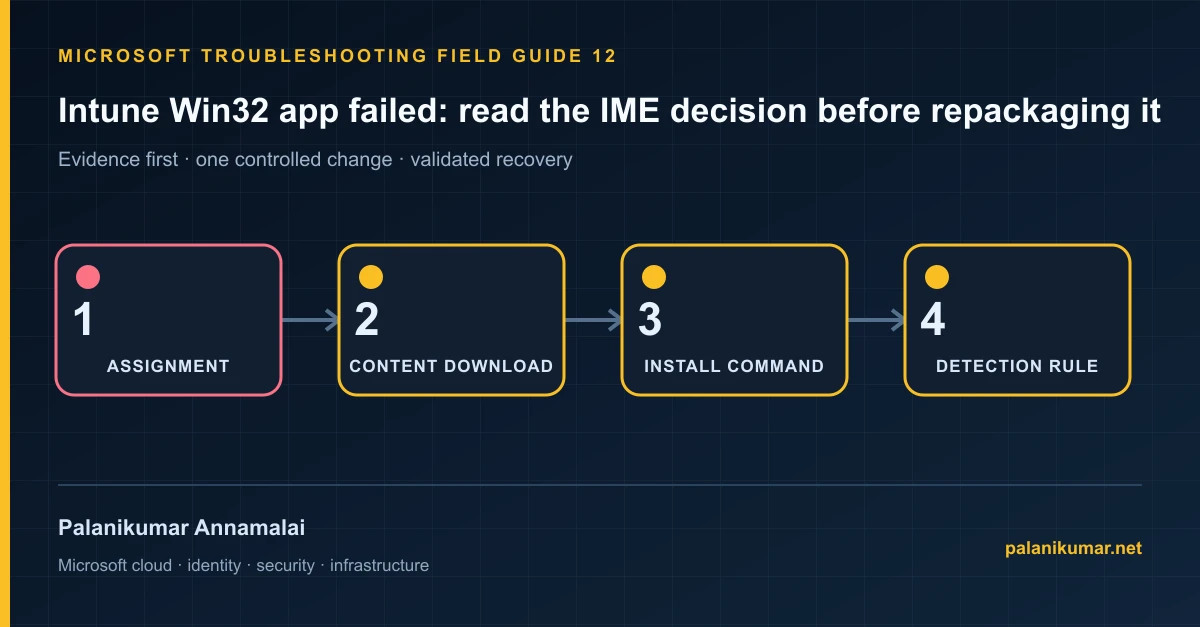
A failed Win32 deployment can be assignment, applicability, download, installer, exit-code or detection failure. The Intune Management Extension logs show the stage.
The fastest safe repair is rarely the first setting that makes the error disappear. Start by identifying the failed layer, preserve the evidence, change one cause and repeat the same test.
Recognise the failure
- The app remains Downloading, Installing, Failed or Not detected.
- The installer succeeds manually but fails through Intune.
- The app installs repeatedly on every check-in.
- A dependency or supersedence chain blocks enforcement.
Write down the affected identity or resource, UTC time, client, source network and correlation or request ID before retrying. Nearby successful events are useful comparisons, but they are not the failed transaction.
Collect evidence before changing configuration
The following commands are read-only unless a comment explicitly says otherwise. Replace every placeholder and use the least-privileged administrative role that can read the required data.
$logRoot = 'C:ProgramDataMicrosoftIntuneManagementExtensionLogs'
Get-ChildItem $logRoot -Filter '*.log' |
  Select-Object Name, Length, LastWriteTime

$patterns = 'applicationPoller','Download','Install','Detection','exit code','error'
Select-String -Path "$logRoot\AppWorkload.log","$logRoot\AppActionProcessor.log" -Pattern $patterns -SimpleMatch |
Select-Object Path, LineNumber, Line | Select-Object -Last 100| Evidence | What it proves |
|---|---|
| Assignment intent | Required, Available and Uninstall follow different enforcement paths. |
| Applicability | Requirements can stop installation before content downloads. |
| IME content stage | Separate CDN/network failure from installer failure. |
| Execution context | System and user context have different profiles, permissions and mapped resources. |
| Exit code and detection | A successful installer with a false detection rule becomes a deployment failure or reinstall loop. |
Work through the likely causes
1. The app was not applicable
Correct architecture, OS, disk, dependency or custom requirement logic. Do not bypass a valid requirement to force installation.
2. Content could not download
Check IME health, service endpoints, proxy, Delivery Optimization and available disk space.
3. The installer failed in system context
Reproduce with the exact command and 32/64-bit context. Remove interactive prompts and user-profile assumptions.
4. Detection does not match installed state
Choose a stable file, registry, MSI product code or script result. Detection must prove the desired version, not merely that a folder exists.
Make the fix controlled and reversible
Before changing production, capture the current configuration, name the owner of the affected service and define the rollback trigger. Prefer the narrowest change that corrects the proven cause. Do not disable a tenant-wide security control, remove a protection policy or broaden a role simply to see whether the symptom changes.
Where a change affects identity, mail flow, security telemetry or network routing, use a test object or limited scope first. Record the exact command or portal setting, the operator, timestamp and the evidence that justified it.
Validate the repair
- Run the exact install and detection logic in the intended context.
- Confirm IME reports the expected exit code.
- Sync the device and verify Installed without another reinstall.
- Test upgrade, dependency and uninstall paths on a clean device.
A successful portal message is not the end of validation. Confirm the user or workload outcome, the relevant audit or health record and the absence of a weaker fallback path.
Evidence to keep
- the original error, correlation or request ID and UTC timestamp;
- the read-only command output that identified the failed layer;
- before-and-after configuration for the specific change;
- the successful validation transaction; and
- any limitation that still needs monitoring or vendor escalation.
References
Reader feedback
Was this article useful?
No ratings yet. Be the first to rate this article.