
Practical engineering guidance
Intune Windows enrollment errors 0x801800xx: identify the gate before resetting the device
Most Windows enrollment failures happen before policy delivery. Separate licensing, MDM scope, device limits, restrictions and stale enrollment state using local and cloud evidence.
Series: Microsoft troubleshooting field guides
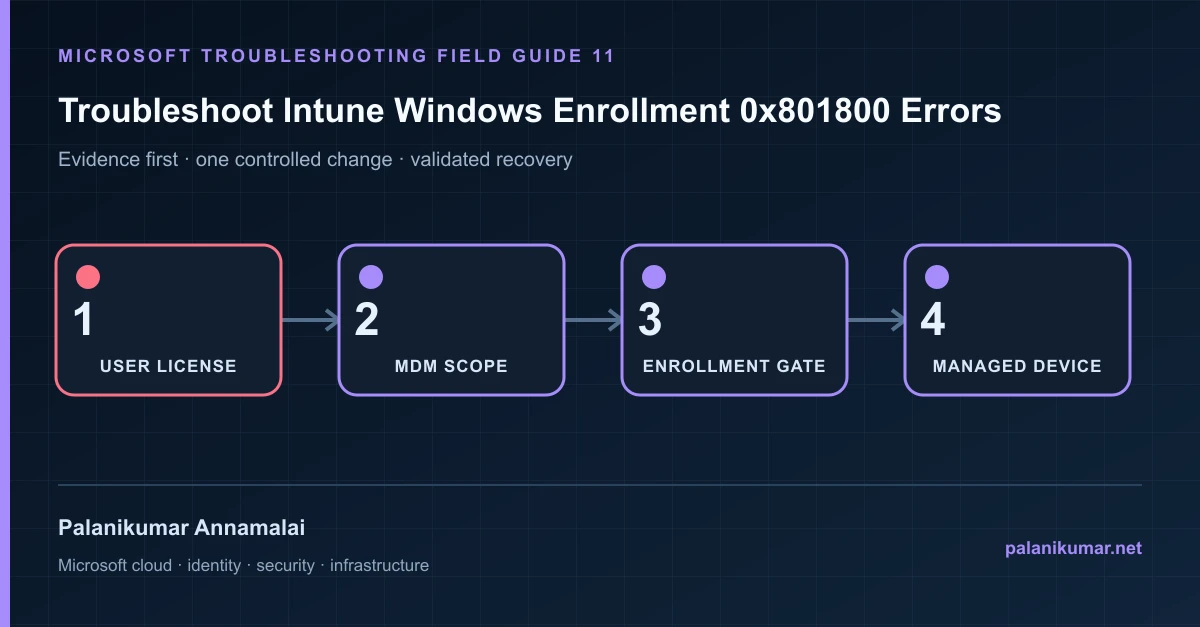
Most Windows enrollment failures happen before policy delivery. Separate licensing, MDM scope, device limits, restrictions and stale enrollment state using local and cloud evidence.
The fastest safe repair is rarely the first setting that makes the error disappear. Start by identifying the failed layer, preserve the evidence, change one cause and repeat the same test.
Recognise the failure
- Windows shows 0x80180003, 0x8018000a, 0x8018002b or a generic enrollment failure.
- The device joins Entra ID but does not enroll in Intune.
- Only a specific user, platform or ownership type fails.
- Event ID 76 records auto-enrollment failure.
Write down the affected identity or resource, UTC time, client, source network and correlation or request ID before retrying. Nearby successful events are useful comparisons, but they are not the failed transaction.
Collect evidence before changing configuration
The following commands are read-only unless a comment explicitly says otherwise. Replace every placeholder and use the least-privileged administrative role that can read the required data.
dsregcmd /status

Get-WinEvent -LogName 'Microsoft-Windows-DeviceManagement-Enterprise-Diagnostics-Provider/Admin' `
  -MaxEvents 100 |
  Where-Object LevelDisplayName -in 'Error','Warning' |
  Select-Object TimeCreated, Id, Message

Get-ScheduledTask -TaskPath '\Microsoft\Windows\EnterpriseMgmt\' `
  -ErrorAction SilentlyContinue |
Select-Object TaskName, State| Evidence | What it proves |
|---|---|
| Error code and event | Map the exact HRESULT and DeviceManagement event before deleting anything. |
| User licensing | Confirm the affected user has an Intune entitlement. |
| MDM user scope | The user must be in the automatic enrollment scope. |
| Device limits and restrictions | Entra join limits and Intune enrollment limits are separate. |
| Existing enrollment | A different work account or stale management certificate can cause “already enrolled.” |
Work through the likely causes
1. User is not authorized
Check license, MDM scope, Users may join devices setting and applicable enrollment restriction.
2. A device limit was reached
Identify stale records with the owner before removal. Increase a global limit only when policy requires it.
3. The platform or ownership type is blocked
Use restriction priority to find the policy that actually applies to the user.
4. The device already belongs to another enrollment
Confirm the existing Work or school account and management state. Remove it through the supported unenrollment path before retrying.
Make the fix controlled and reversible
Before changing production, capture the current configuration, name the owner of the affected service and define the rollback trigger. Prefer the narrowest change that corrects the proven cause. Do not disable a tenant-wide security control, remove a protection policy or broaden a role simply to see whether the symptom changes.
Where a change affects identity, mail flow, security telemetry or network routing, use a test object or limited scope first. Record the exact command or portal setting, the operator, timestamp and the evidence that justified it.
Validate the repair
- Confirm dsregcmd shows the intended join and tenant.
- Look for enrollment success Event ID 75.
- Verify the device appears once in Entra and Intune with the correct owner.
- Force a sync and confirm a harmless test policy arrives.
A successful portal message is not the end of validation. Confirm the user or workload outcome, the relevant audit or health record and the absence of a weaker fallback path.
Evidence to keep
- the original error, correlation or request ID and UTC timestamp;
- the read-only command output that identified the failed layer;
- before-and-after configuration for the specific change;
- the successful validation transaction; and
- any limitation that still needs monitoring or vendor escalation.
References
Reader feedback
Was this article useful?
No ratings yet. Be the first to rate this article.