
Practical engineering guidance
Purview DLP policy tip is not showing: prove evaluation before changing the rule
A missing policy tip can be client configuration, policy scope, sensitive-information matching, threshold or service evaluation. Test one controlled message and follow the evidence.
Series: Microsoft troubleshooting field guides
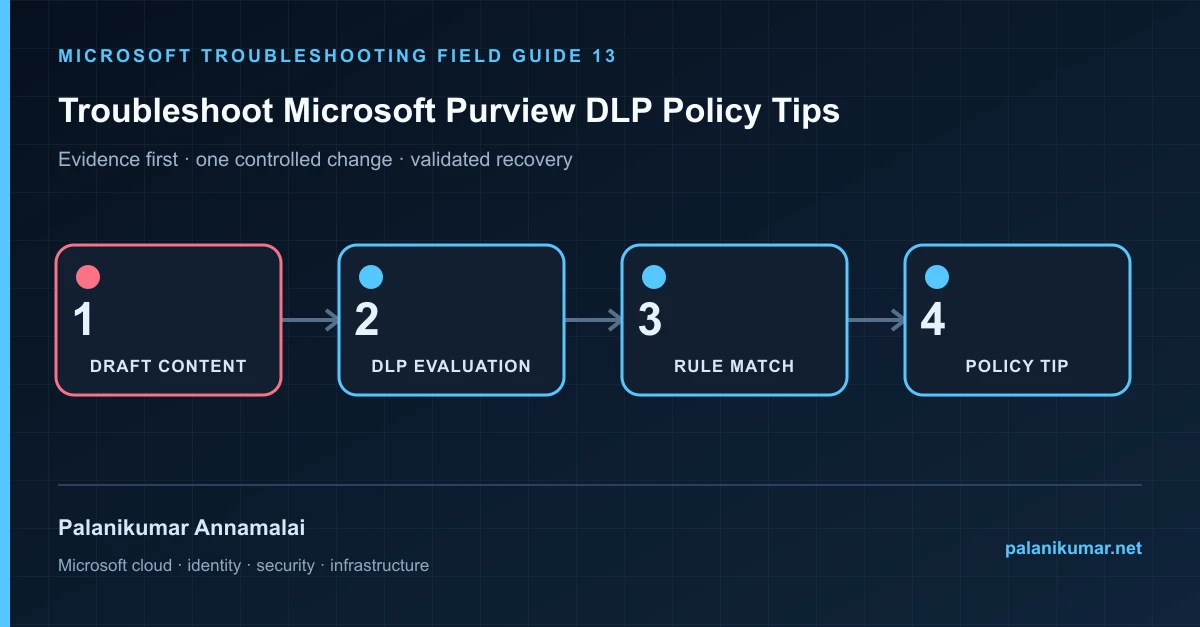
A missing policy tip can be client configuration, policy scope, sensitive-information matching, threshold or service evaluation. Test one controlled message and follow the evidence.
The fastest safe repair is rarely the first setting that makes the error disappear. Start by identifying the failed layer, preserve the evidence, change one cause and repeat the same test.
Recognise the failure
- The DLP rule works after send but no compose-time tip appears.
- A tip appears in Outlook on the web but not desktop Outlook.
- Only some users or recipients trigger the rule.
- Test data looks similar to a sensitive information type but does not meet confidence or count.
Write down the affected identity or resource, UTC time, client, source network and correlation or request ID before retrying. Nearby successful events are useful comparisons, but they are not the failed transaction.
Collect evidence before changing configuration
The following commands are read-only unless a comment explicitly says otherwise. Replace every placeholder and use the least-privileged administrative role that can read the required data.
Connect-IPPSSession
Get-DlpCompliancePolicy |
  Select-Object Name, Enabled, Mode, Workload, DistributionStatus

Get-DlpComplianceRule |
  Select-Object Name, ParentPolicyName, Disabled, Mode,
    BlockAccess, NotifyUser, NotifyPolicyTipCustomText

# Use Test-DlpPolicies with approved synthetic content where supported.| Evidence | What it proves |
|---|---|
| Policy mode and distribution | A rule still publishing or in disabled state cannot behave consistently. |
| User and workload scope | Confirm the affected user, location and recipient conditions are included. |
| Sensitive information evidence | Use synthetic test data that meets the SIT pattern, corroborative evidence, confidence and count. |
| Client behavior | Outlook settings and build can affect display even when service evaluation succeeds. |
| GetDLPPolicyTip call | A HAR trace separates no request, service error and no matching rule. |
Work through the likely causes
1. The content did not actually match
Inspect SIT confidence and instance threshold. Avoid weakening production detection based on visually similar but invalid test data.
2. The policy is not active for this user or location
Correct scope, workload and publication state, then allow documented propagation time.
3. The client did not request a policy tip
Enable policy tips in Outlook, update the client and compare with Outlook on the web.
4. The service evaluated but returned no rule
Use the Purview HAR diagnostic to identify the failed condition; change only that rule predicate.
Make the fix controlled and reversible
Before changing production, capture the current configuration, name the owner of the affected service and define the rollback trigger. Prefer the narrowest change that corrects the proven cause. Do not disable a tenant-wide security control, remove a protection policy or broaden a role simply to see whether the symptom changes.
Where a change affects identity, mail flow, security telemetry or network routing, use a test object or limited scope first. Record the exact command or portal setting, the operator, timestamp and the evidence that justified it.
Validate the repair
- Use a documented synthetic test case and approved recipient.
- Confirm the policy tip appears before send.
- Verify the enforcement action after send matches the design.
- Test a nonmatching message to prevent excessive false positives.
A successful portal message is not the end of validation. Confirm the user or workload outcome, the relevant audit or health record and the absence of a weaker fallback path.
Evidence to keep
- the original error, correlation or request ID and UTC timestamp;
- the read-only command output that identified the failed layer;
- before-and-after configuration for the specific change;
- the successful validation transaction; and
- any limitation that still needs monitoring or vendor escalation.
References
Reader feedback
Was this article useful?
No ratings yet. Be the first to rate this article.